
Digital Banking Reference Guide


New Gather Digital Banking app icon

DIGITAL BANKING UPGRADE

A new look is coming. Let’s get you ready.

Your upgraded Gather Digital Banking experience is coming soon. Before upgrade day, take a moment to find your member number so you have it ready for your first login.

How to find your member number

Look for a new app icon

When you first access Digital Banking after the upgrade, you’ll notice a new app icon.

Gather app icon comparison: the old icon on the left and the new icon on the right.

Find your member number before upgrade day

Follow these steps in your current Digital Banking app. The process is the same for Apple and Android devices, although your screen may look slightly different.

Open your profile

From your current Digital Banking home page, select your profile icon in the top-right corner.

Apple devices

Apple device example for step 1: locate the profile icon on the Digital Banking home page.

Android devices

Android device example for step 1: locate the profile icon on the Digital Banking home page.

View your member number

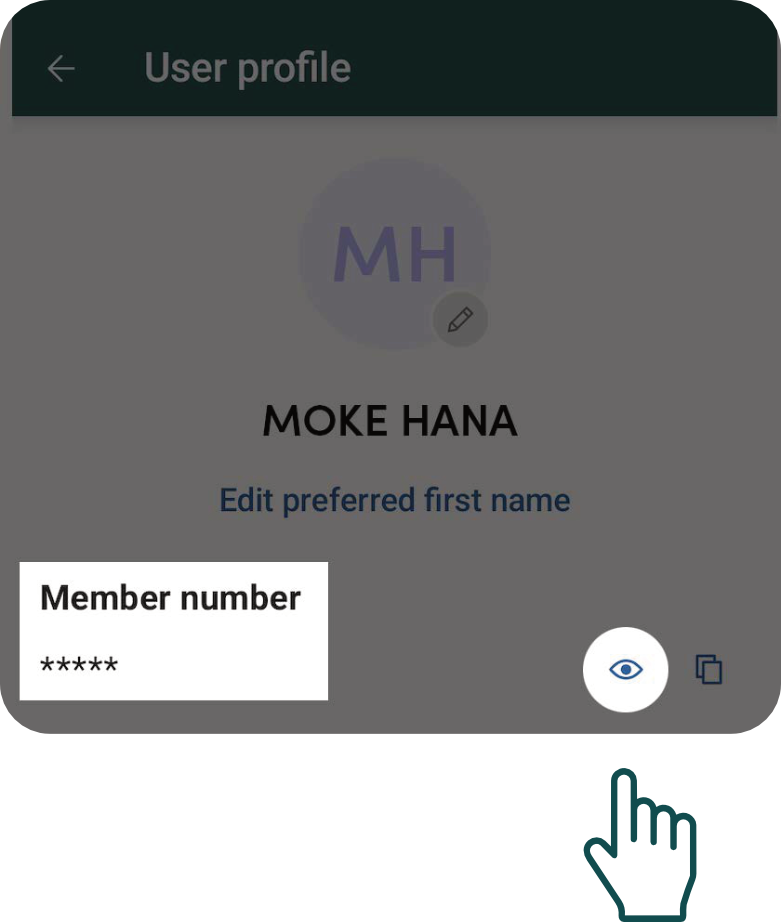
Find your member number at the top of your Profile. If it’s hidden, tap the eye icon or the three dots on the right side of the screen to view it.

Apple devices
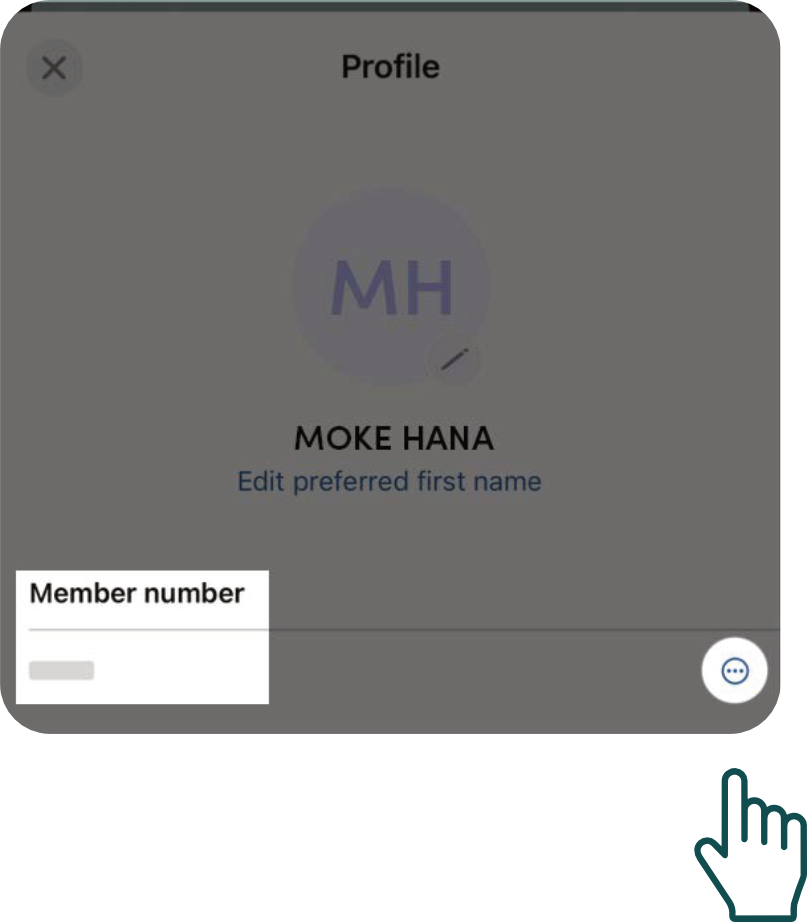
Apple device example for step 2: find and reveal your member number in your Profile.

Android devices

Android device example for step 2: find and reveal your member number in your Profile.

Keep it somewhere secure

Save your member number in a secure location so it’s available when you complete your first login after the upgrade.

Need a hand? We’re here to help.

If you need help finding your member number or preparing for the upgrade, contact Gather FCU. We’re here to help make your transition as smooth as possible.

Call 808.245.6791


This carousel may contain up to three testimonials (the slides), and it will loop on the first and last testimonials. It autoplays unless prefers-reduced-motion is set to reduced, in which case it will be paused. Previous and next arrows will appear if necessary to move between testimonials, and testimonials may be dragged toward the previous or next. If only one testimonial exists, no arrows or pause button should exist.


    The carousel may contain up to three cards (the slides), and it will loop on the first and last cards. This section may not show as a slider if all cards are visible on screen. Previous and next arrows will appear if necessary to move between cards, or when cards may be dragged toward the previous or next card.